Best note taking apps for students and teachers

For most students, the right choice comes down to three apps: Microsoft OneNote if you’re on Windows or in a Microsoft 365 household, Apple Notes if your main device is an iPad or iPhone, and Notion if you work across platforms and want to build a proper revision system. Everything else on this list serves a more specific need.
Here’s the quick map:
- Microsoft OneNote — best free all-rounder for Windows users; freeform canvas, handwriting, PDF annotation, and generous organisational tools
- Apple Notes — the most seamless free option for Apple devices; tight iPad/iPhone integration with Apple Pencil support
- Notion — cross-platform knowledge base; excellent for subject wikis and long-term revision, though AI features sit behind paid tiers
- Obsidian — for privacy-first students who want local Markdown files and powerful linking; requires manual sync setup
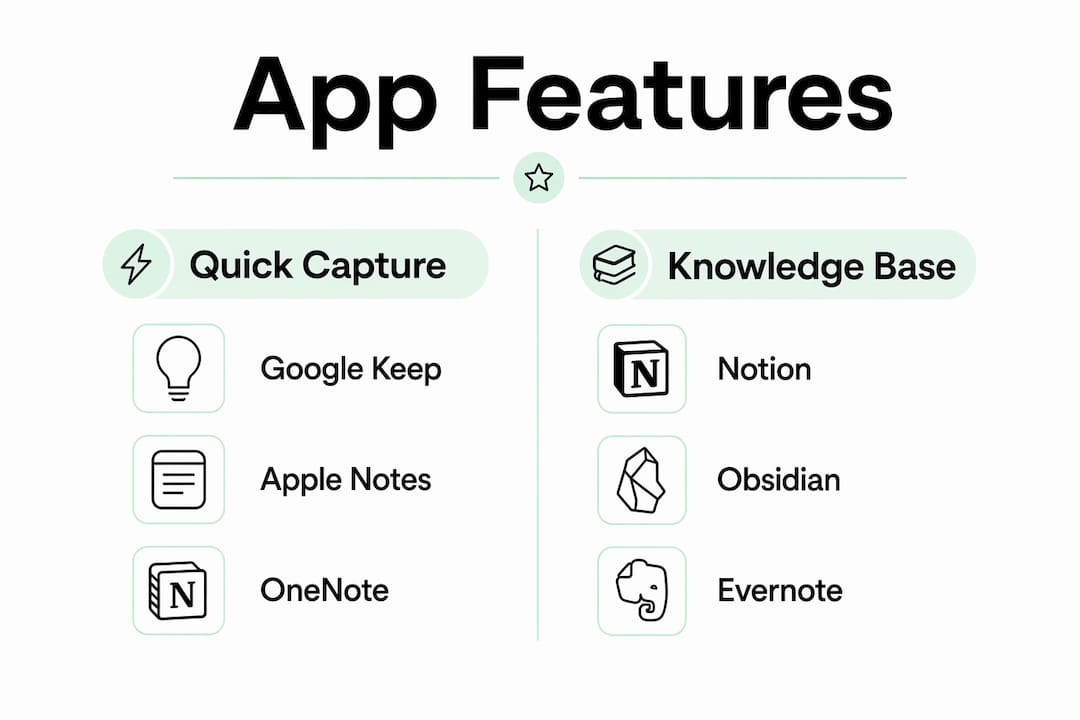
- Google Keep — fast, frictionless capture on Android; not a knowledge base, but nothing beats it for quick lists and voice notes
- Evernote — once the gold standard; the free plan is now limited to 50 notes and one notebook, making it hard to recommend over free alternatives
- UpNote — a clean, affordable Evernote alternative at $0.99/month or a $39.99 lifetime licence; good middle ground for students who want structure without complexity
Device shortcut: iPad → Apple Notes or OneNote; Windows laptop → OneNote; Android phone → Google Keep for capture, Notion for depth; E Ink device (reMarkable, Kindle Scribe) → distraction-free writing but limited app ecosystem.
Table of Contents
- What do the best note taking apps actually offer?
- How do you choose the right note app for exam study?
- How to set up your app for exam revision
- Organising PapersZA past papers inside your note app
- What students should know about privacy and data security
- How note apps connect with calendars, task managers, and LMS platforms
- Which note apps work best for group study?
- Key takeaways
- Why Papersza recommends pairing note apps with past papers
- Useful sources and further reading
- FAQ
What do the best note taking apps actually offer?
| App | Best for | Platforms | Price (free tier) | Handwriting/PDF | Offline | Web clipper | Export |
|---|---|---|---|---|---|---|---|
| Microsoft OneNote | Windows students, freeform notes | Win, Mac, iOS, Android, Web | Free | Yes | Yes | Yes | OneNote/PDF |
| Apple Notes | Apple ecosystem | iOS, macOS, Web | Free | Yes (Apple Pencil) | Yes | Safari only | PDF/text |
| Notion | Knowledge base, collaboration | All + Web | Free (limited blocks) | Limited | Paid only | Yes | Markdown/PDF |
| Obsidian | Privacy, linking, power users | Win, Mac, iOS, Android, Linux | Free (local) | Via plugins | Yes | Via plugins | Markdown |
| Google Keep | Quick capture, Android | Android, iOS, Web, Chrome | Free | Basic | Yes | Chrome ext. | Google Docs |
| Evernote | Web clipping, search | All + Web | 50 notes, 1 notebook | Yes | Paid | Yes | HTML/PDF |
| UpNote | Affordable Evernote alternative | Win, Mac, iOS, Android | Limited | Basic | Yes | No | Markdown/PDF |
OneNote remains the strongest free pick for Windows households. Microsoft 365 integration means teachers can share notebooks with students directly, and the freeform canvas handles diagrams and equations better than most document-based editors.

Notion moved its AI features into higher-tier plans in early 2026, so students expecting AI summarisation on the free tier will be disappointed. The free plan still covers most study needs, but budget for a paid plan if AI tools matter to you.
Obsidian stores everything as local Markdown files, which means your notes are yours permanently. Cross-device sync requires a paid Obsidian Sync subscription or a manual setup via iCloud or GitHub. Worth the friction for students building a multi-year revision archive.
Evernote’s pricing shift makes it a tough sell. The free plan’s 50-note cap fills up fast, and paid tiers are significantly more expensive than what free alternatives offer.
How do you choose the right note app for exam study?
The single most reliable rule: match the app to your primary device. A great app that creates friction on your main device is a bad one for you.
Quick decision checklist:
- What is your main device? (iPad → Apple Notes/OneNote; Windows → OneNote; Android → Keep/Notion; cross-platform → Notion/Obsidian)
- Do you annotate PDFs or handwrite notes? (Yes → need Apple Pencil support, OneNote, or a stylus-capable app)
- Do you study offline? (Yes → avoid Notion’s free tier; prefer OneNote, Obsidian, or Apple Notes)
- Do you need to share notes with a study group or teacher? (Yes → Notion or OneNote)
- Do you want your notes in 10 years? (Yes → Obsidian’s Markdown or any app with clean PDF export)
Red flags to watch for: paywalls on basic export, note-count caps on free tiers (Evernote’s 50-note limit), no PDF annotation if you rely on past papers, and cloud-only storage with no offline fallback.
Tech experts consistently emphasise that feature-fit beats price: a free app that matches your device and workflow outperforms a paid app that doesn’t. For STEM subjects, prioritise apps with a freeform canvas or strong handwriting tools — non-linear note-taking handles diagrams and equations far better than a plain document editor.
How to set up your app for exam revision
A structured setup takes 15 minutes and saves hours of searching later.
- Create a top-level subject structure. One notebook (or folder) per subject: Mathematics, Life Sciences, English, History. Mirror the subject names used on Papersza so your notes and past papers use identical labels.
- Add a naming convention for past papers. Use the format
[Subject]_[Grade]_[Year]_[Session]— for example,Maths_Gr12_2023_Nov. This matches Papersza’s organisation and makes search instant. - Set up a tag scheme. Tags like
#exam-ready,#needs-review, and#memo-checkedlet you filter notes by revision status without reorganising folders. - Create two note types per subject: a running “capture” note for quick thoughts during study, and a “master summary” note that links to your annotated past papers.
- Link your PapersZA PDFs. Download the paper, annotate it in your app, and save it alongside the memo. In Notion or Obsidian, embed a link back to the relevant topic note.
Workflow A (quick capture for last-minute revision): Use Google Keep or Apple Notes. Create one note per topic. Bullet the key facts. Convert to a checklist and tick off as you revise. Fast, low-friction, works offline.
Workflow B (knowledge base for long-term mastery): Use Notion or Obsidian. Build a subject wiki with linked pages for each topic. Attach annotated past papers. Add a “connections” section that links related concepts across subjects. This approach pays off most for essay-heavy subjects and matric preparation.
Pro Tip: If your app supports handwriting-to-text conversion (OneNote and reMarkable both do), write your summary notes by hand first, then convert. The act of handwriting improves retention, and the converted text becomes searchable.
For timed past-paper practice, add a calendar block (Google Calendar or Apple Calendar) labelled with the paper name and duration. Link the calendar event to the note where you’ll record your answers and self-assessment.
Organising PapersZA past papers inside your note app
PapersZA is South Africa’s largest independent past-paper library, hosting over 8,315 documents spanning grades 3 to 12. All papers — from DBE, IEB, and provincial authorities — are free to download with no account required. Every paper is paired with a detailed memo for self-assessment.
Here is a practical sequence for building a PapersZA revision archive inside any note app:
- Go to papersza.co.za and download the past paper and memo for your subject, grade, and year.
- Name the files using the convention above (
English_Gr11_2023_Nov_Paper1.pdf). - Import both PDFs into your note app. In OneNote, drag them onto a page. In Notion, attach them to a database entry. In Obsidian, place them in a dedicated
past-papersfolder inside your vault. - Annotate the paper: highlight questions you got wrong, add margin notes explaining the correct approach, and cross-reference the memo.
- In your master topic note, add a line linking to the annotated paper. Over time, this builds a searchable record of every past paper you’ve worked through.
Set up a metadata table in your note app with four columns: Grade, Subject, Year, Session. This mirrors Papersza’s structure exactly and makes it easy to spot gaps — if you’ve done 2021 and 2023 but not 2022, the table shows it immediately. For Grade 11 English papers or Grade 12 English papers, this kind of systematic tracking makes a real difference in the weeks before exams.
What students should know about privacy and data security
Cloud-first apps (Notion, Evernote, Google Keep) store your notes on external servers. For most students, that is fine. The practical risks are account loss and service discontinuation, not data theft. Use a strong, unique password and enable two-factor authentication on any cloud note app.
For students who handle sensitive material or simply want long-term control, Obsidian’s local storage model is the most privacy-respecting option. Your notes never leave your device unless you choose a sync method. Plain Markdown files also open in any text editor, so you are never locked into a single app.
One practical rule: never store exam papers or memos you obtained through unofficial channels in a shared cloud notebook. Stick to publicly available sources like Papersza, where all documents come from official DBE, IEB, and provincial authorities.
How note apps connect with calendars, task managers, and LMS platforms
OneNote integrates directly with Microsoft Teams and Outlook, which makes it the natural choice for schools running Microsoft 365. Teachers can push assignments into a shared class notebook, and students can submit annotated work without leaving the ecosystem.
Notion connects to Google Calendar via third-party tools like Zapier, and its database structure works well as a lightweight task manager on its own. For students using a school LMS (Google Classroom, Canvas, Moodle), the practical workflow is to keep the LMS for official submissions and use your note app for personal revision. Trying to replace the LMS with a note app creates more friction than it solves.
Google Keep integrates natively with Google Docs and Google Calendar reminders, which suits students already in the Google Workspace environment. For broader classroom technology considerations, the 2026 guide to digital equity tools covers device access and platform choices worth reviewing if you’re advising a whole class.
Which note apps work best for group study?
Notion leads here. Its shared databases and real-time editing make it straightforward to build a group revision wiki where each member owns a section. Permissions are granular: you can give classmates edit access to shared pages while keeping personal notes private.
OneNote’s shared notebooks work well within Microsoft 365 schools. The collaboration is solid, though the freeform canvas can get messy when multiple people edit simultaneously.
Google Keep allows basic sharing of individual notes, but it is not built for collaborative knowledge-building. Use it for shared shopping-list-style revision checklists, not for a group subject wiki.
Obsidian has no built-in real-time collaboration. It is a solo tool. If group work matters, Notion is the better fit.
Key takeaways
The single most important decision is device-first: choose the app that removes friction on the device you actually study with, then build your PapersZA revision archive around it.
| Point | Details |
|---|---|
| Match app to device | iPad → Apple Notes or OneNote; Windows → OneNote; cross-platform → Notion or Obsidian. |
| Evernote’s free tier is limited | The 50-note, one-notebook cap fills up fast; free alternatives offer more for student use. |
| Obsidian for long-term privacy | Local Markdown files stay on your device and open in any editor, even years later. |
| Structure mirrors Papersza | Name files [Subject]_[Grade]_[Year]_[Session] to match Papersza’s organisation and speed up search. |
| Export matters | Choose an app with clean PDF or Markdown export so your revision archive survives app changes. |
Why Papersza recommends pairing note apps with past papers
South African students often spend more time hunting for reliable study materials than actually studying. That is the gap Papersza was built to close. With thousands of past papers and memos from DBE, IEB, and provincial authorities, all free and requiring no account, the resource is only as useful as the system you build around it.
The note app workflows described here are not theoretical. They reflect how students who perform consistently well actually organise their revision: structured folders, annotated papers, and a clear link between what they studied and what the exam asked. Papersza provides the papers; a good note app provides the system to work through them.
Useful sources and further reading
- PCMag: The Best Note-Taking Apps for 2026 — pricing details, feature comparisons, and device-specific recommendations including OneNote and Evernote analysis.
- Tech-Insider: Best Note-Taking Apps 2026 — device-ecosystem matching advice and the quick-capture vs knowledge-base distinction.
- Obsidian — official documentation on local Markdown storage, sync options, and plugin ecosystem.
- Wirecutter/NYT: Best Digital Notebooks 2026 — E Ink device comparisons (reMarkable, Kindle Scribe, Kobo) for handwriting-focused students.
- Microsoft OneNote — official feature overview including Copilot integration, education tools, and platform availability.
- Papersza: How It Works — explains how to find, download, and trust past papers and memos from DBE, IEB, and provincial sources.
FAQ
Which note app is best for iPad students?
Apple Notes is the strongest free choice for iPad users, with native Apple Pencil support and deep iOS integration. Microsoft OneNote is the best alternative if you also work on Windows.
Is Evernote still worth using in 2026?
The free plan is limited to 50 notes and one notebook, which fills up quickly for active students. Free alternatives like OneNote and Apple Notes offer more without a paywall.
How do I keep my notes private as a student?
Obsidian stores notes as local Markdown files that never leave your device unless you set up sync. For cloud apps, enable two-factor authentication and use a unique password.
Can I use a note app to organise PapersZA past papers?
Yes. Download the PDF and memo from Papersza, name them using a [Subject]_[Grade]_[Year]_[Session] convention, import them into your app, and annotate directly. Notion and OneNote both handle PDF attachments well.
What is the difference between quick-capture and knowledge-base apps?
Quick-capture apps (Google Keep, Apple Notes) are built for speed and simplicity. Knowledge-base apps (Notion, Obsidian) support linking, databases, and long-form organisation. Most students benefit from using one of each for different tasks.