Best PDF compressors for students and teachers

For most students and teachers, three tools cover every situation: Smallpdf for quick single-file uploads, PDF24 Creator for flexible offline compression, and macOS Preview when you need files to stay entirely on your device. If you’re downloading past papers from Papersza and need to submit them to a school portal, Smallpdf or iLovePDF handles the job in under a minute. Teachers compressing batches of memos should go straight to PDFsam Basic or PDF24 Creator. Privacy-conscious users, especially those handling scanned learner documents, should use Preview or a local desktop tool so files never leave the device.
Papersza hosts a large collection of official DBE, IEB, and provincial past papers and memos, all free to download without an account. Most download as compact PDFs already, but portal upload limits sometimes require an extra compression step.
Table of Contents
- Which are the best PDF compressors right now?
- Which tool should you use first?
- Key takeaways
- Why these picks make sense for South African learners
- Useful sources for compression help and privacy guidance
- Papersza: where to get the papers before you compress
- FAQ
Which are the best PDF compressors right now?
| Tool | Best for | Platform | Privacy model | Free limits | Presets / quality | Batch support |
|---|---|---|---|---|---|---|
| Smallpdf | Quick single-file student uploads | Web | Server upload | tasks/day free | Basic / Strong | No (free) |
| iLovePDF | Occasional editing + compression | Web | Server upload | Unlimited (with limits) | Recommended / Extreme | Limited free |
| Adobe Acrobat online | Screen vs print preset control | Web + Desktop | Server (web); Local (desktop) | file/day free (web) | Low / Medium / High | Desktop only |
| PDF Candy | One-off PDF edits and compression | Web | Server upload | Free, no daily cap stated | Single level | No |
| Preview (macOS) | Local, no-upload Mac compression | macOS only | Client-side (local) | Unlimited, free | Quartz filter presets | No |
| PDFsam Basic | Batch offline teacher workflows | Windows / macOS / Linux | Client-side (local) | Free, open-source | Limited (merge/split focus) | Yes |
| PDF24 Creator | Flexible quality + offline option | Web + Windows | Both available | Free | Adjustable DPI, lossless/lossy | Yes |
| Papersza | Download official past papers and memos | Web | N/A (not a compressor) | Free, no account needed | N/A | N/A |
Smallpdf is the fastest entry point: drag a file, pick Basic or Strong, download. The free tier caps you at two tasks per day, which is enough for most students submitting a single paper. iLovePDF pairs compression with conversion tools, so if you also need to merge a question paper with its memo before compressing, it saves an extra step.
Adobe Acrobat deserves a separate mention for its compression presets. The online version is limited to one file per day on the free plan, but the desktop app gives you Low, Medium, and High presets with local processing. For Grade 12 past papers that need to stay legible when printed, Medium is the right call. Strong or High compression on a scanned memo can make text blurry.
PDF Candy suits occasional users who want one site for many small PDF jobs without a daily task limit. It won’t win on speed, but the toolset is wide.
Preview on macOS is the privacy winner for Apple users. Export as PDF, choose the Reduce File Size Quartz filter, and nothing leaves your machine. The trade-off is coarse control: you get one filter, not a DPI slider.
PDFsam Basic is open-source and handles batch splitting and merging well, though its compression controls are minimal compared to dedicated compressors. Teachers distributing sets of papers to a class will find it faster than any web tool for bulk work.
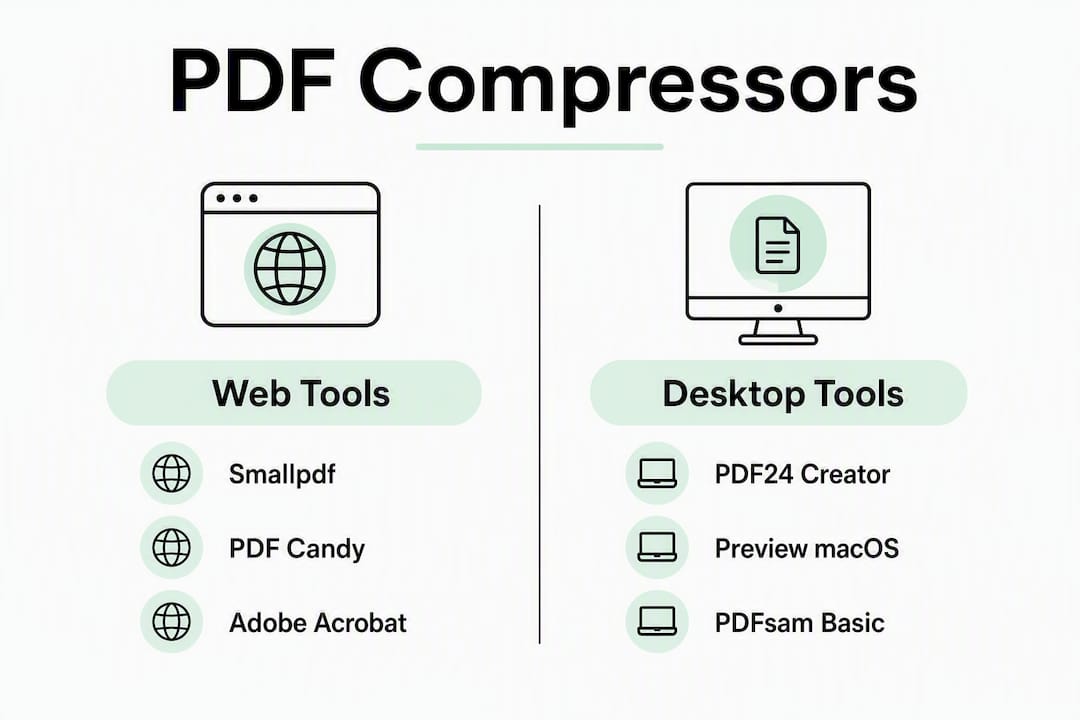
PDF24 Creator offers the most flexibility of the free options. The online tool lets you adjust DPI and toggle lossless versus lossy modes; the Windows desktop app does the same offline. For teachers compressing dozens of memos, this combination is hard to beat.
PDFs heavy with scanned images compress far more than text-only memos. A 40MB scanned question paper can drop to under 5MB; a clean text memo may only shrink by 20–30%.
Pro Tip: Pick the “screen” or “medium” preset for portal uploads and the “print” or “high” preset when students will print the paper at home. Screen presets lower DPI to around 72–96, which is fine on a monitor but looks soft on paper.
Large PDFs are often caused by many fonts and high-resolution images. Before compressing, delete blank pages and remove any attachments embedded in the file — that alone can cut several megabytes.
For privacy-first workflows when handling scanned learner documents, a practical guide to merging and compressing PDFs offline covers the key steps without requiring a server upload.
Which tool should you use first?
For most readers, the answer is PDF24 Creator or Smallpdf.
- Students submitting to a school portal: Smallpdf or iLovePDF. Upload, choose Basic or Recommended compression, download. A 10–50MB exam paper typically processes in 15–45 seconds on a decent connection.
- Privacy-conscious users: macOS Preview or PDF24 Creator’s desktop app. Files stay local; no server ever sees them.
- Teachers with batches: PDFsam Basic or PDF24 Creator desktop. Set a DPI profile once, run the whole folder.
Workflow: download the paper from Papersza → open in your chosen tool → select screen/medium preset → check that text is still readable before submitting.
Key takeaways
The single most useful rule: use a web tool for quick one-off compressions and a local desktop tool whenever privacy or batch volume matters.
| Point | Details |
|---|---|
| Web vs local | Web tools are fastest for single files; local/desktop tools keep files private and handle batches. |
| Preset choice | Use screen/medium for portal uploads; use print/high when students will print the paper. |
| Reduce before compressing | Delete blank pages and embedded attachments before running compression to maximize size reduction. |
| Text vs image PDFs | Scanned image-heavy papers compress far more than clean text memos; expect modest gains on text-only files. |
| Papersza source | Download official DBE, IEB, and provincial papers free at Papersza, then compress as needed for submission. |
Why these picks make sense for South African learners
The tools on this list were evaluated against real workflows: downloading papers from Papersza, checking file sizes, running compressions, and verifying that text and diagrams remained readable at the output. The selection prioritizes free tiers, no-account access, and client-side options because most learners and teachers don’t want to pay or register just to shrink a file.
Papersza’s library spans grades 3–12 with official DBE, IEB, and provincial sources paired with memos. Files are free and require no login. That accessibility matters: a student shouldn’t hit a paywall at the compression step after getting the paper for free.
For sensitive documents, such as scanned learner scripts or annotated memos, client-side tools are the right default. Files processed locally never touch an external server, which removes any retention or data-handling concern entirely.
Useful sources for compression help and privacy guidance
- Smallpdf compress tool — browser-based compression with Basic and Strong presets, no installation needed.
- Adobe Acrobat online compressor — explains how PDF compression optimizes images and removes redundant metadata, with Low/Medium/High presets.
- ExactPDF client-side compressor — 100% in-browser processing, three compression levels, no watermark, no signup.
- Foxit online compressor — covers encrypted processing, automatic deletion of uploaded files, and desktop batch tools.
- Free desktop PDF tools — curated list of offline PDF utilities for teachers who prefer not to use web services.
- iLovePDF compress tool — web-based compression paired with conversion and editing tools in one interface.
Papersza: where to get the papers before you compress
Compressing a PDF is only half the task. Getting the right paper in the first place is the other half, and that’s where Papersza fits.
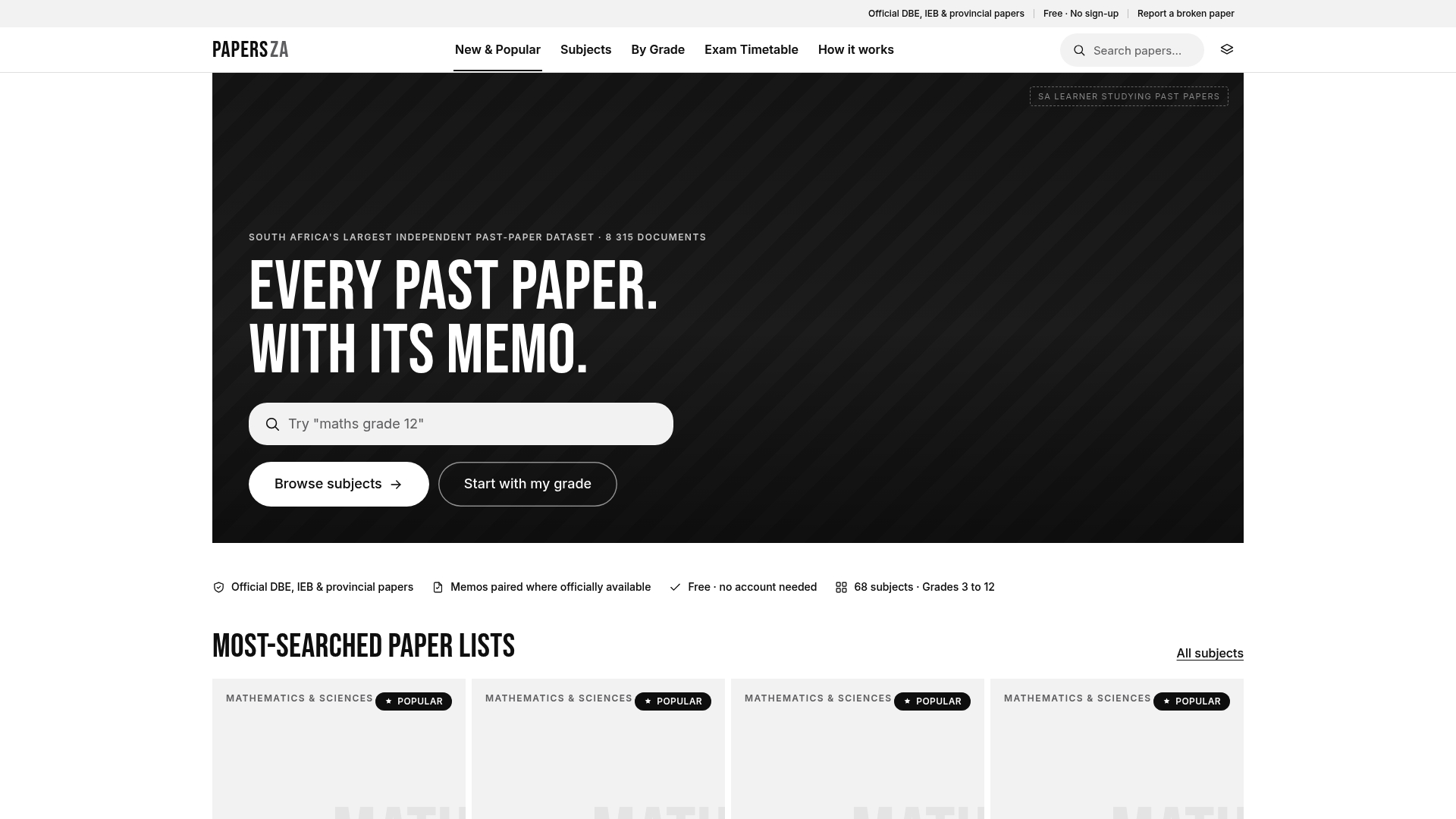
Papersza is South Africa’s largest independent past-paper library, with thousands of official DBE, IEB, and provincial documents covering grades 3–12. Every paper comes paired with its memo, organized by subject, grade, and exam session. No account, no subscription, no waiting. Download the file, run it through whichever compressor suits your workflow, and submit. For Grade 10 English papers, Accounting Grade 12 papers, or any other subject, the archive is ready. Start browsing the full library at Papersza and have the paper in hand before you open a compressor.
FAQ
What is the best free PDF compressor for students?
Smallpdf and PDF24 Creator are the strongest free options for students. Smallpdf handles quick single-file uploads in seconds; PDF24 Creator adds offline processing and adjustable DPI at no cost.
How do I compress a PDF without uploading it to a server?
Use macOS Preview’s Reduce File Size export filter or PDF24 Creator’s desktop app. Both process files locally, so nothing is sent to an external server.
Which compression preset should I use for a past exam paper?
Use the screen or medium preset for portal submissions, which keeps file size small while preserving on-screen readability. Choose print or high quality if the paper will be printed at home.
How long does it take to compress a 10–50MB exam paper online?
Most online tools process a file that size in 15–45 seconds, depending on your connection speed and the tool’s server load.
Where can I download official South African past papers before compressing them?
Papersza hosts thousands of official DBE, IEB, and provincial past papers and memos for grades 3–12, all free to download without an account at papersza.co.za.