Best PDF editors for students: free-first picks 2026
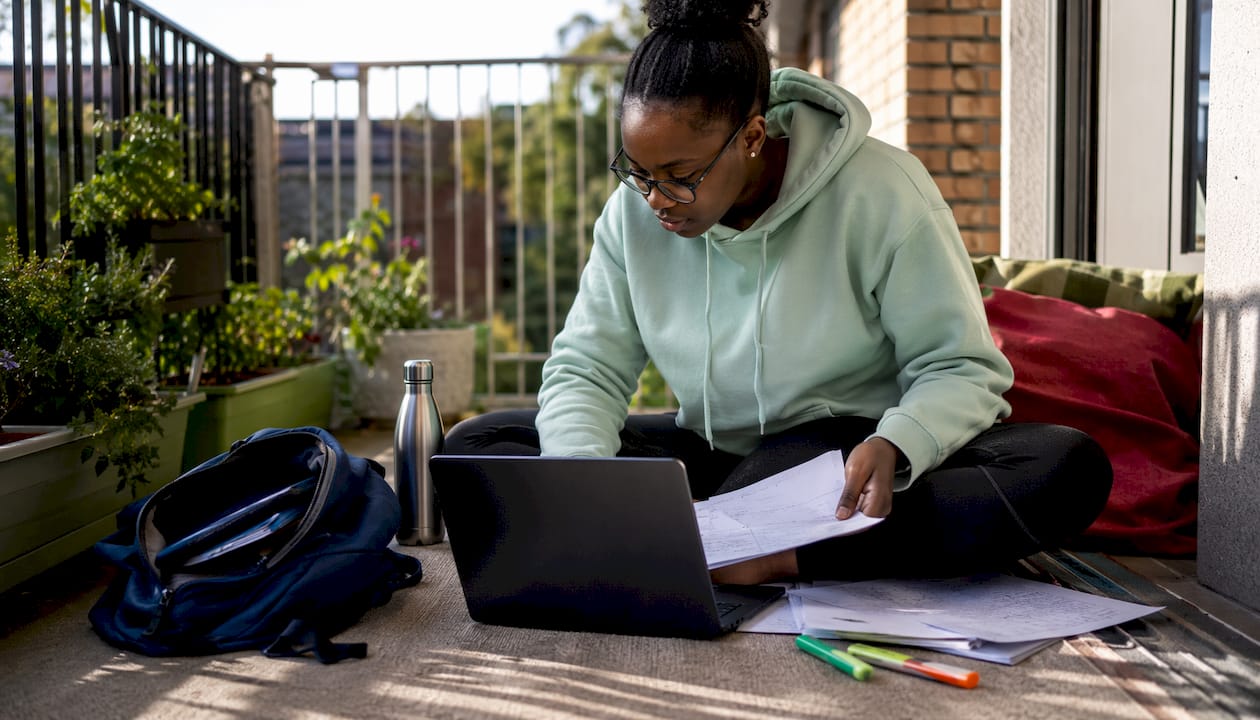
For most students working with past papers from sources like PapersZA, DBE, and IEB, the right PDF editor is free. Here are the quick verdicts:
- PDFgear — best free editor on Windows; annotate, merge, split, basic text edits, no account needed
- Preview (macOS) — built-in Mac tool; annotation, signing, page management, zero installs
- Adobe Acrobat Pro DC — best for OCR and form creation; industry standard, subscription required
- Foxit PDF Editor — lightweight, ribbon UI, good for teachers and collaborative review
- Nitro PDF Pro — team workflows, enterprise controls, trial available
- Xodo — cross-platform; offline desktop plus quick web editor
- PDFescape — browser-based; simple edits and form filling, no install
- Smallpdf — web toolkit; compress and convert PDFs before emailing or uploading
- PDFsam Basic — open-source; split and merge pages offline, nothing else
- PDF-XChange Editor — feature-rich Windows editor; strong annotation and export, lighter than Acrobat
Pro Tip: If you are on Windows and need one free tool that handles annotation, merging, and basic text edits without a watermark, start with PDFgear. Mac users already have Preview — open it and you are done.
Table of Contents
- How do these PDF editors compare for student tasks?
- How to choose the right PDF editor for your needs
- Where to get the past papers you will actually edit
- FAQ
- Key takeaways
How do these PDF editors compare for student tasks?
| Editor | Best for | Platforms | Free tier limits | Ease of use | Privacy | Paid price |
|---|---|---|---|---|---|---|
| PDFgear | Annotation, merge/split, basic text | Windows | Fully free, no watermark | Easy | Local | Free |
| Preview (macOS) | Annotation, signing | macOS only | Fully free | Very easy | Local | Free |
| Adobe Acrobat Pro DC | OCR, text editing, forms | Win, Mac, iOS, Android, web | Reader is free; editing/OCR paywalled | Moderate | Cloud/local | ~a subscription fee |
| Foxit PDF Editor | Lightweight editing, collaboration | Win, Mac, Linux, mobile | Free reader; advanced features paid | Easy (ribbon UI) | Local/cloud | ~a monthly subscription fee |
| Nitro PDF Pro | Team workflows, OCR, automation | Win, Mac | Trial available; full features paid | Moderate | Cloud | Subscription |
| Xodo | Cross-device annotation, offline OCR | Win, Mac, Linux, iOS, Android, web | Web editor free; advanced desktop paid | Easy | Local (desktop) | Subscription |
| PDFescape | Quick edits, form filling | Browser | Free with page/size limits | Very easy | Cloud | Freemium |
| Smallpdf | Compression, conversion | Browser, desktop | Daily task limits on free tier | Very easy | Cloud | Subscription |
| PDFsam Basic | Split and merge only | Win, Mac, Linux | Fully free, open-source | Easy | Local | Free |
| PDF-XChange Editor | Annotation, export flexibility | Windows | Free with watermarks on saved edits | Moderate | Local | ~a one-time purchase price |
Offline editors like PDFgear, PDFsam Basic, and PDF-XChange Editor keep your files on your device. Cloud tools like Smallpdf and PDFescape upload files to their servers, which matters when papers contain personal notes or draft answers. For most past-paper annotation, local processing is the safer and faster choice on large scanned files.
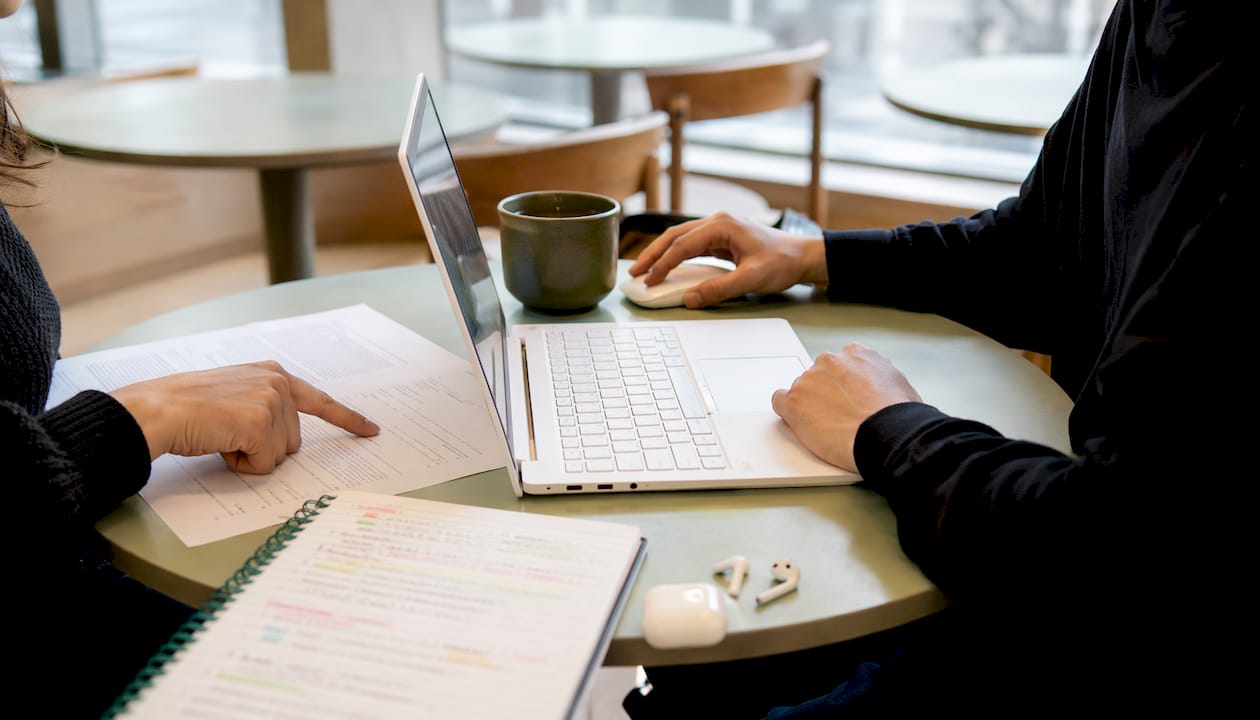
Pro Tip: Before paying for any editor, download a scanned past paper from PapersZA and test OCR and form-filling in the free tier. Many editors hide OCR behind a paywall — find out before you commit.
How to choose the right PDF editor for your needs
Decision checklist:
- OS first. Windows: PDFgear or PDF-XChange Editor. macOS: Preview covers most tasks.
- Task list. Annotating only? Any free tool works. Need OCR on scanned papers? Adobe Acrobat or Xodo’s paid desktop tier.
- Offline vs. cloud. Sensitive documents stay safer in a local editor.
- Device performance. Foxit and PDF-XChange Editor run lighter than Acrobat on older hardware.
- Accessibility. Check for screen-reader support and high-contrast modes if needed.
Five tasks students actually need — quick steps:
- Annotate/highlight — Open PDF, select the highlight or comment tool, click and drag over text.
- Fill form fields — Open in PDFescape or Adobe Reader; click any form field and type.
- Run OCR on a scanned paper — In Adobe Acrobat Pro or Xodo desktop, use “Recognize Text” or “OCR” from the Tools menu.
- Merge or split pages — PDFsam Basic: drag files in, choose split or merge, export.
- Extract or save annotated PDF — Use “Save As” or “Export” to keep annotations; in Smallpdf, download the processed file directly.
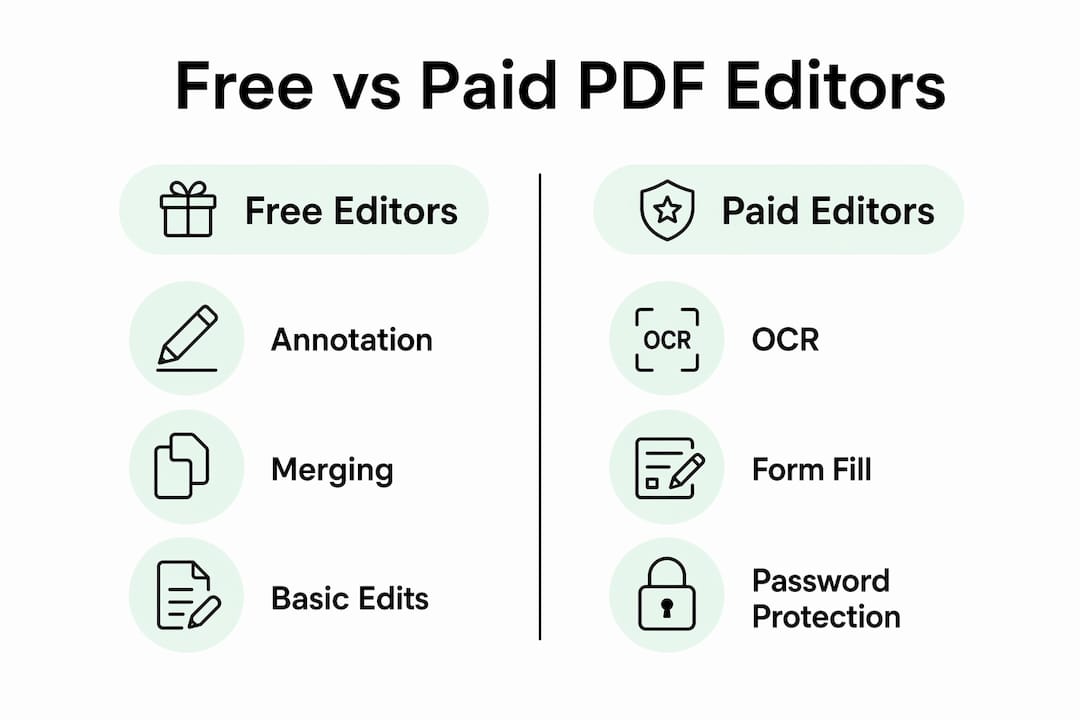
Most free tiers cover annotation and combining but lock OCR, original-text editing, and password protection behind paid plans. If you regularly work with scanned DBE papers, a paid OCR tier or a free trial of Adobe Acrobat Pro is worth testing. Familiar ribbon-style interfaces in Foxit and Nitro also reduce the learning curve for teachers switching editors across a class.
Where to get the past papers you will actually edit
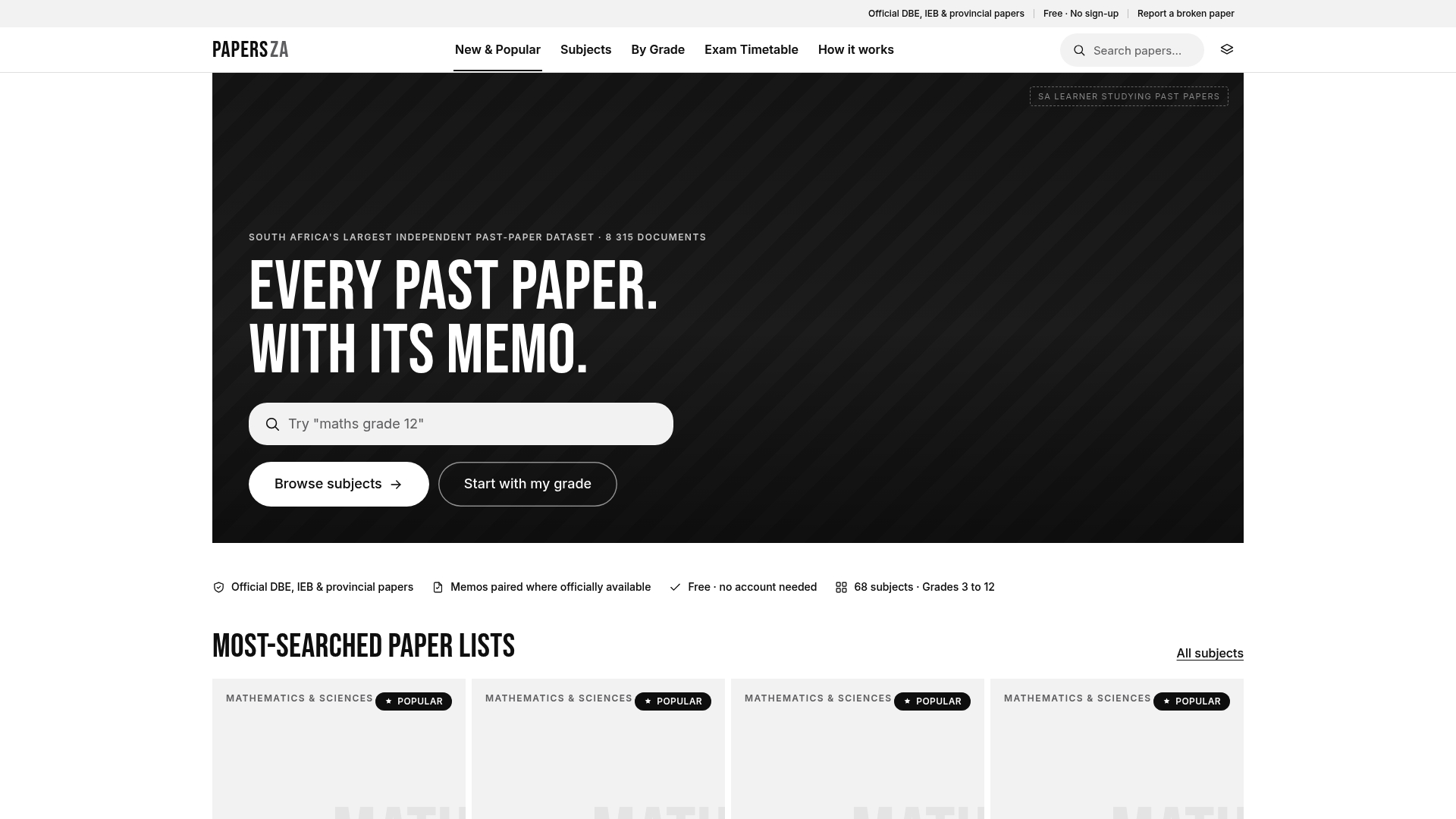
Papersza hosts over 8,315 past papers and memos from the DBE, IEB, and provincial authorities, covering grades 3 to 12. Every document downloads directly as a PDF, no account required. That means you can open any file straight into PDFgear, Preview, or PDF-XChange Editor and start annotating offline within seconds.
For matric revision, the Grade 12 English past papers and Grade 10 English papers are among the most downloaded. Download, save locally, then open in an offline editor if privacy matters. The how-it-works guide walks through finding the right paper and memo in under a minute.
FAQ
What is the best free PDF editor for Windows?
PDFgear is the top free pick for Windows, offering annotation, merge/split, and basic text edits without watermarks or an account.
Do I need a paid editor to run OCR on scanned past papers?
Most free tiers do not include OCR. Adobe Acrobat Pro and Xodo’s paid desktop tier both handle OCR reliably; test either during a free trial before buying.
Is it safe to upload past papers to online PDF editors?
Cloud editors like Smallpdf and PDFescape upload files to their servers. For personal notes or draft answers, an offline editor keeps your work private.
Which editor works best for teachers managing multiple documents?
Foxit PDF Editor suits teachers well: its ribbon interface is familiar, it handles collaborative review, and it runs lighter than Acrobat on most school hardware, making it a valuable tool for digital student engagement.
Where can I find South African past papers to practice with?
Papersza provides free DBE, IEB, and provincial past papers for grades 3–12 at papersza.co.za, paired with memos for self-marking.
Key takeaways
For students working with South African past papers, free offline editors like PDFgear and Preview cover most tasks, while Adobe Acrobat Pro remains the only reliable free-trial option for OCR on scanned documents.
| Point | Details |
|---|---|
| Free-first by platform | PDFgear (Windows) and Preview (macOS) handle annotation and merging at no cost. |
| OCR needs a paid tier | Most free editors lock OCR behind a paywall; test Adobe Acrobat or Xodo desktop on a trial first. |
| Offline editors protect privacy | Local tools like PDFsam Basic and PDF-XChange Editor keep files off third-party servers. |
| Match tool to task | Use Smallpdf for compression before emailing; use PDFsam Basic for splitting or combining pages only. |
| Papersza provides the papers | Over 8,315 free DBE, IEB, and provincial PDFs download directly, ready for any offline editor. |